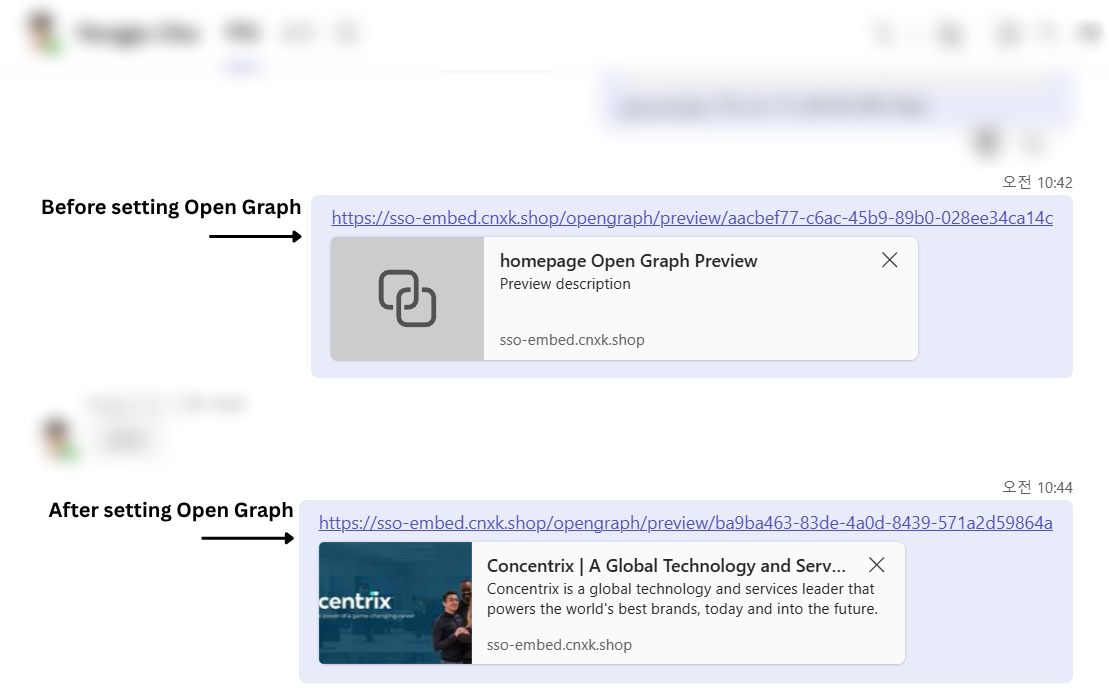
Documentation
Detailed guides on setting up and managing your CNXK SSO integration.
3. Open Graph Settings
Create Open Graph
Go to 'Open Graph'.
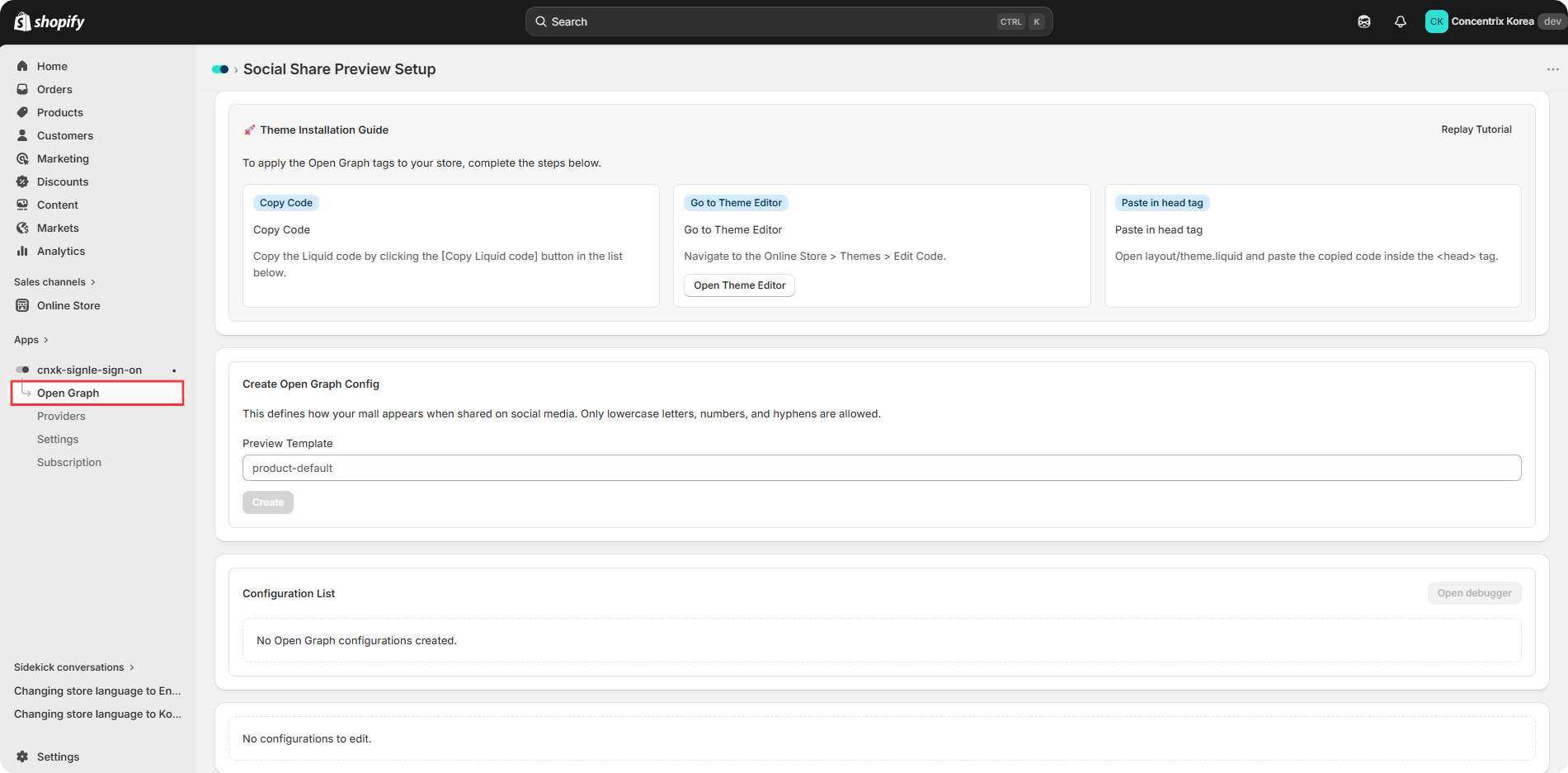
Enter a preview template name, such as homepage, new-arrivals, or best-sellers, then click Create.
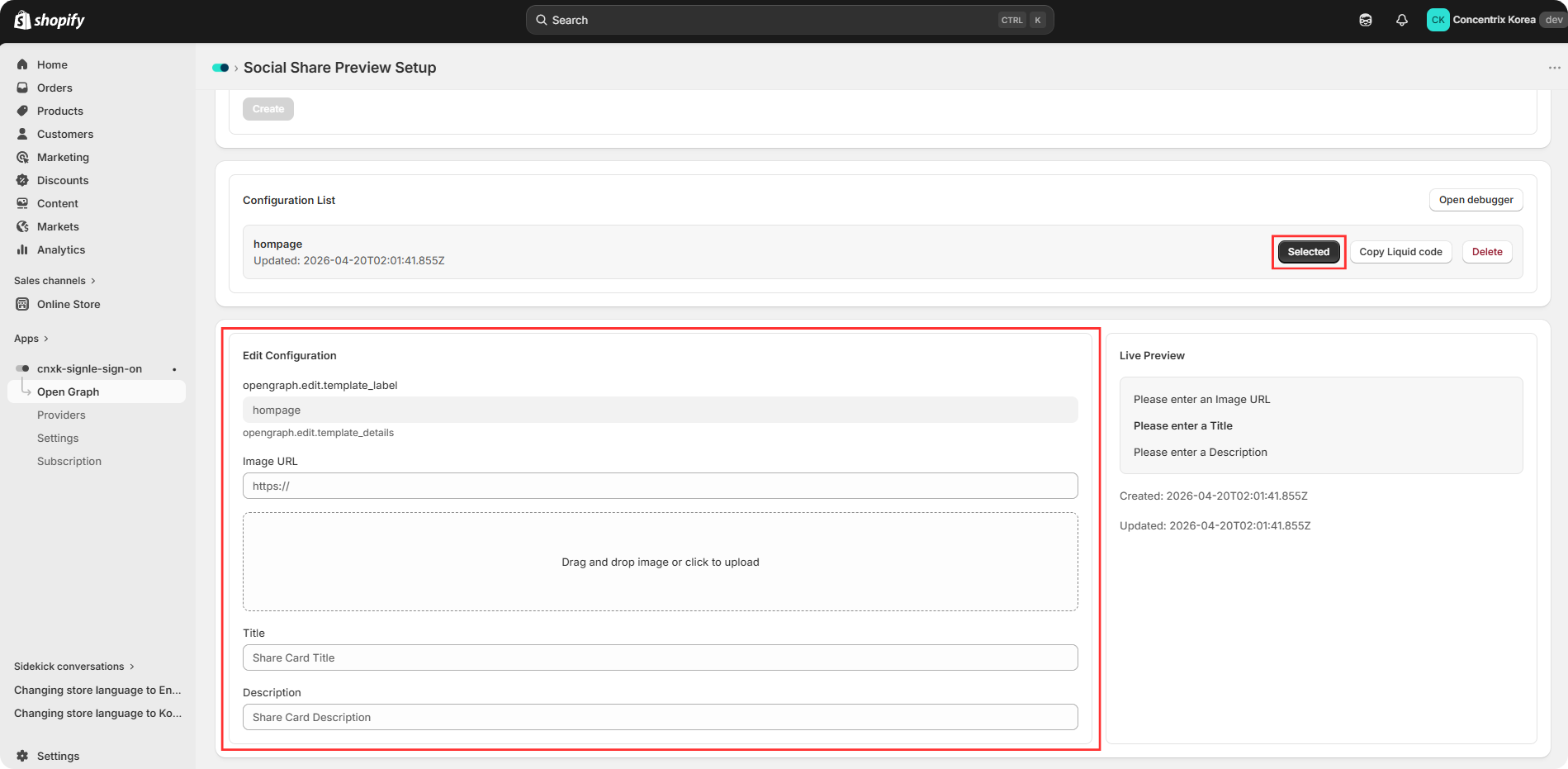
Make sure the correct preview template is selected before editing.
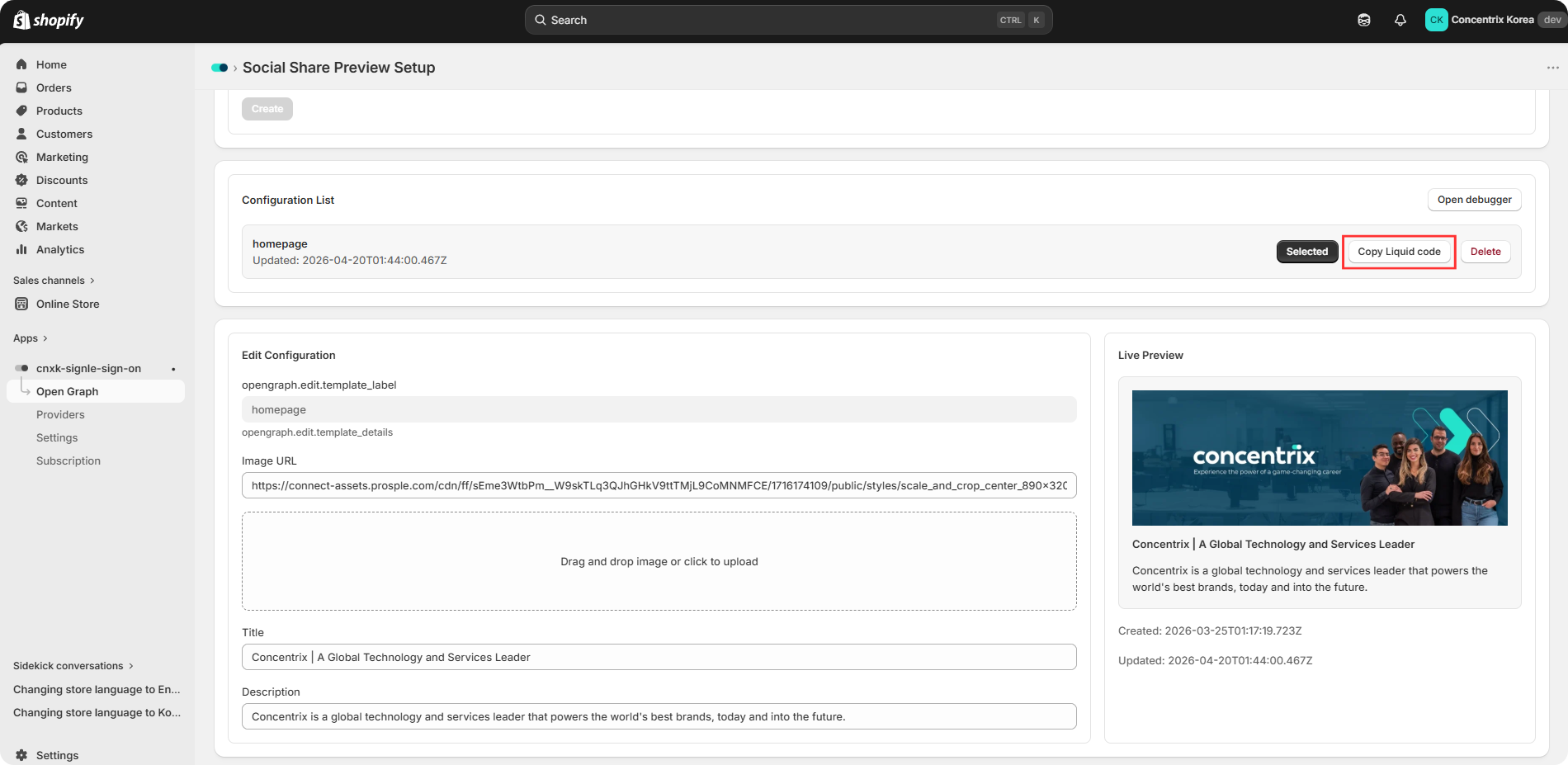
Add an image, title, and description to your share preview. Use the live preview on the right-hand side to check the result.
The example below is provided for reference.
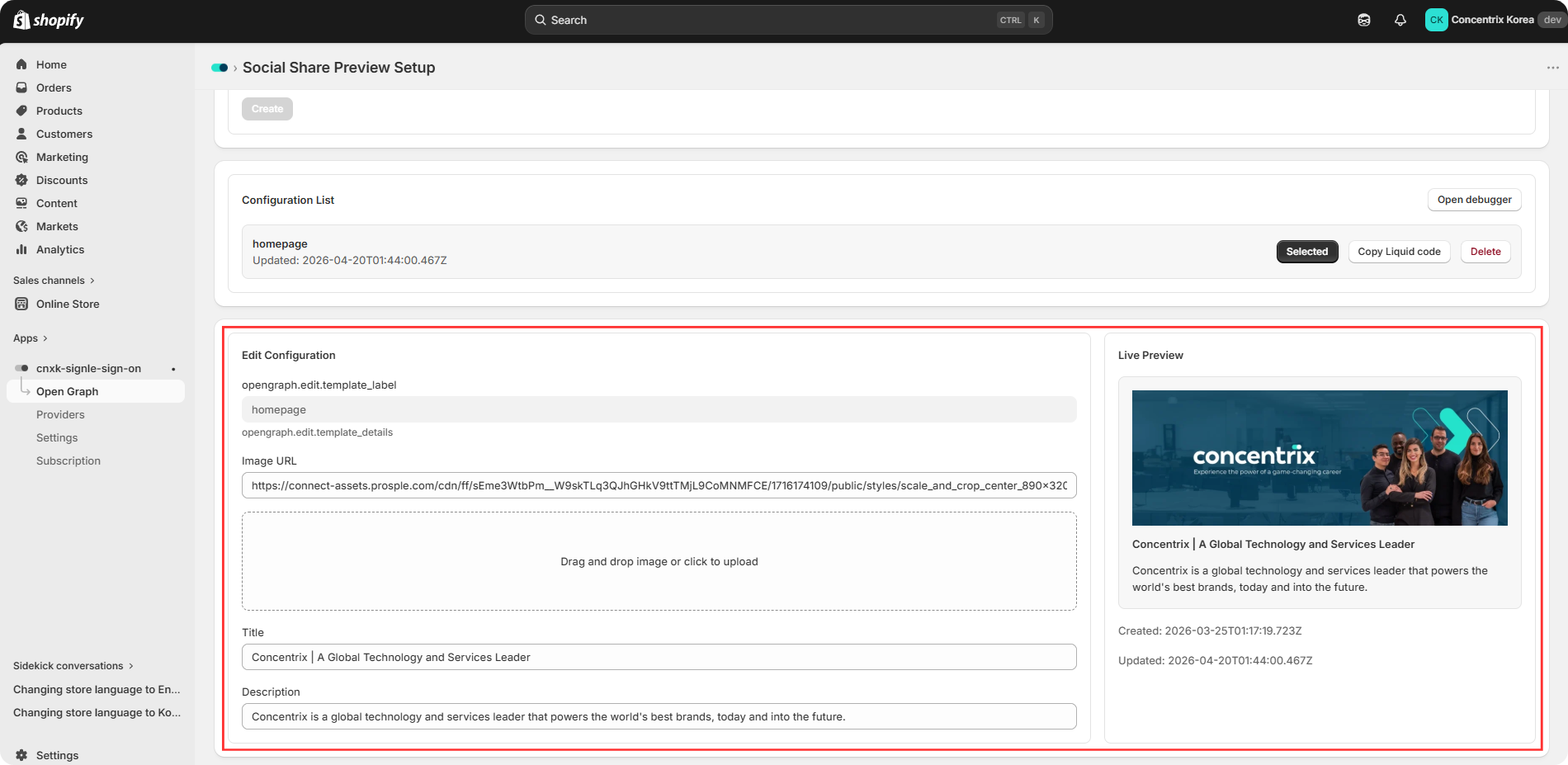
Click Save to save all changes before moving to the Theme Editor settings.
Theme Editor Settings
Click 'Copy Liquid code'.
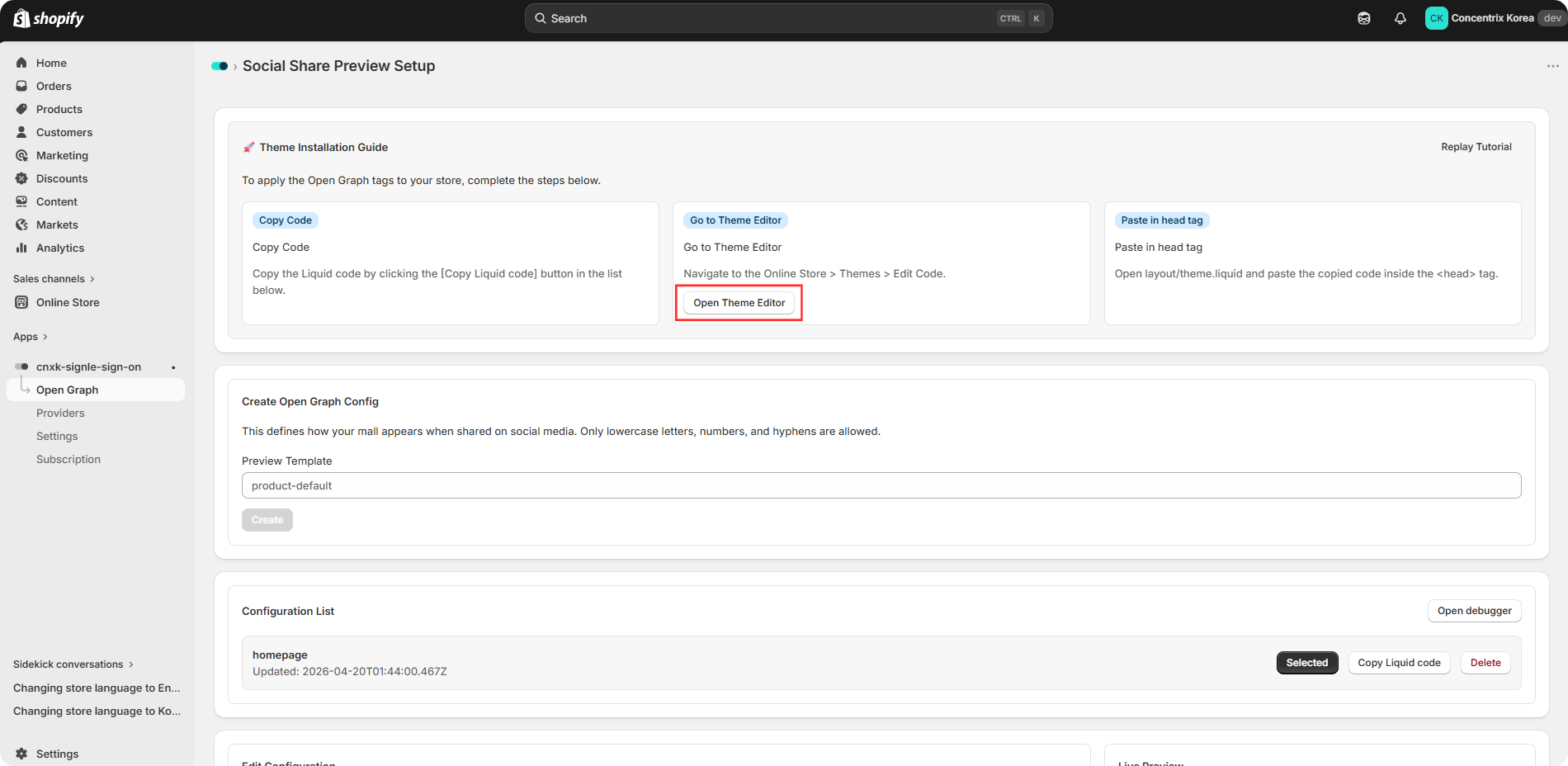
Click 'Open Theme Editor'
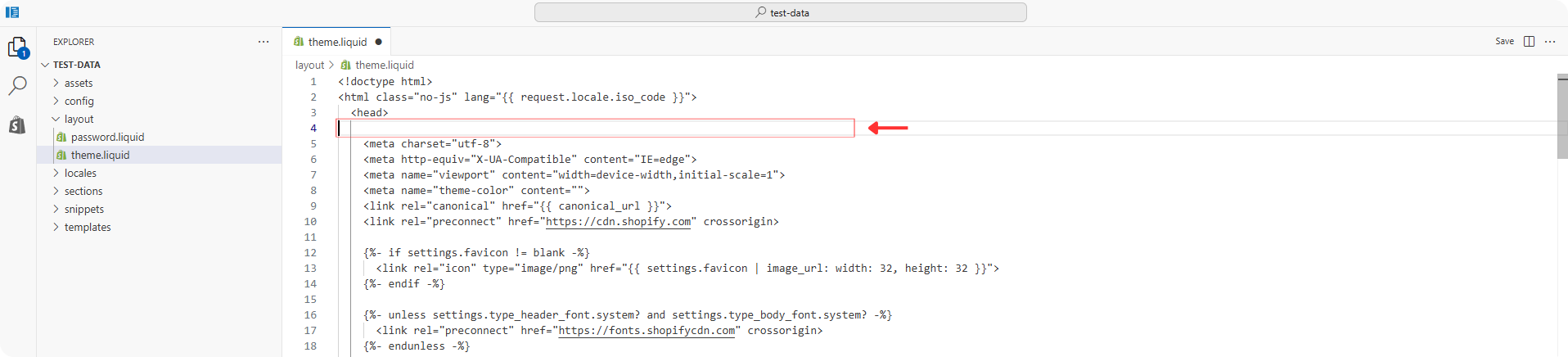
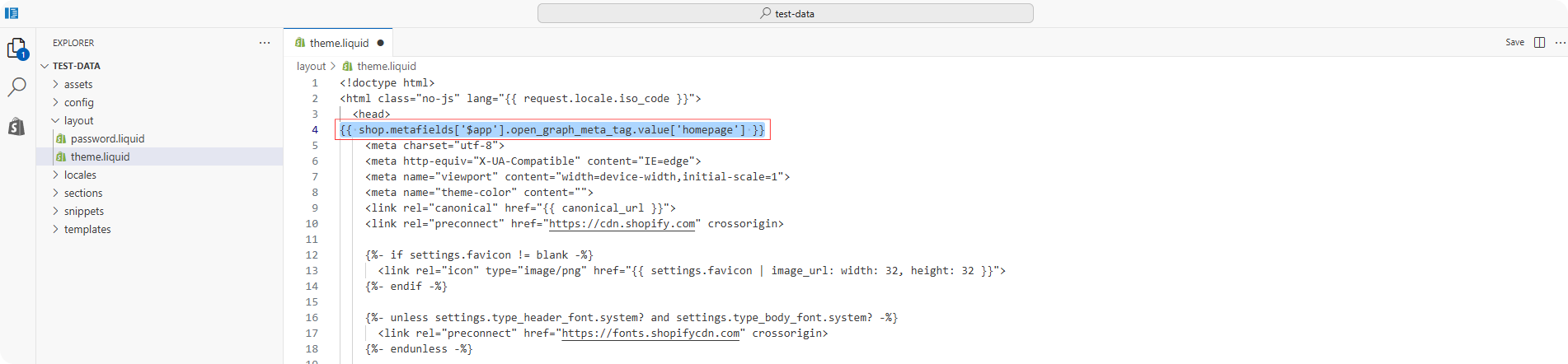
Paste the Liquid code you just copied into the field below, then click Save.
To copy the preview link, go to Configuration list > Open debugger > Copy Preview Link.


The image below shows how your store will appear when shared on social media.